

Connect your workspace to Nevian
Follow the Setup page from the tracking script to the pixel, one step at a time. A step is done as soon as it is connected. Nothing asks you to buy anything.
What you need
- A Nevian workspace with an active plan, where you are the owner, an admin or a member.
- A page you can edit, your checkout account and your ad account.
Steps
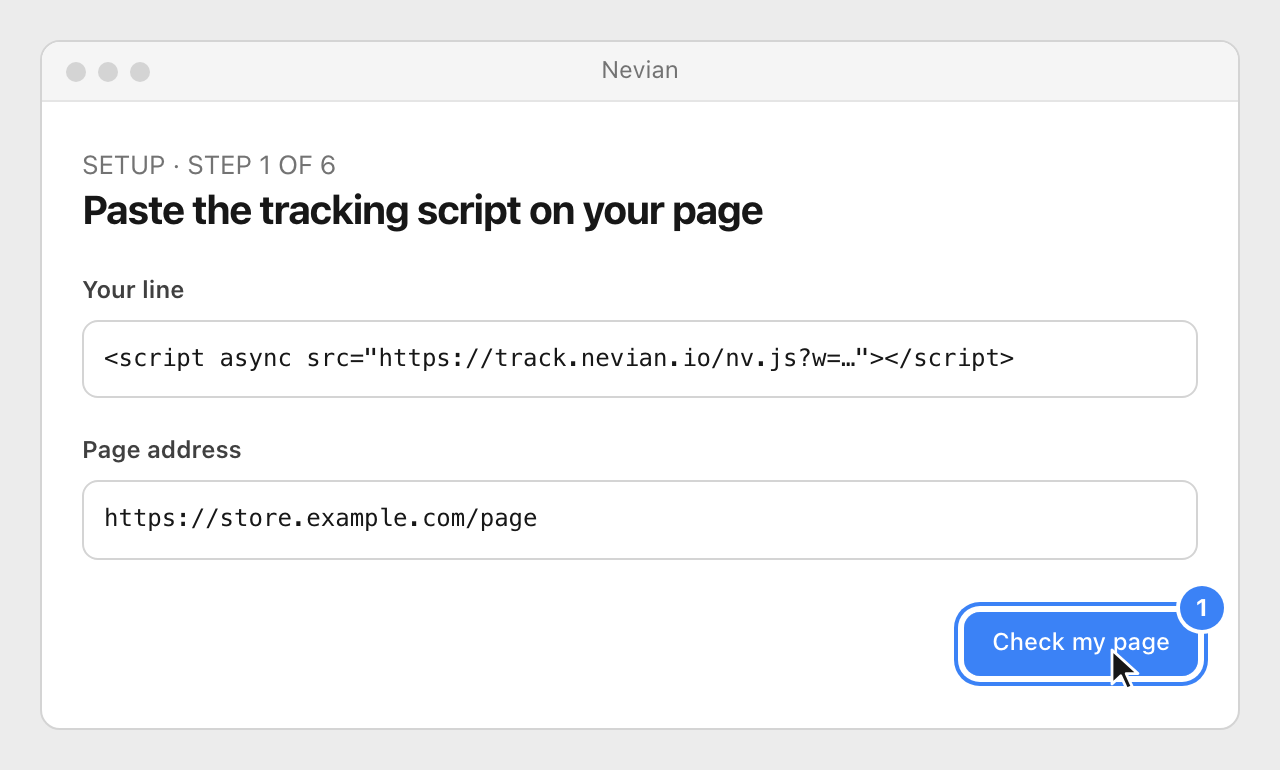
Open Tracking › Setup. It shows one step at a time, and the bar at the top shows what is done. In Paste the tracking script on your page, copy the line and paste it on every page of your site. The tracking script is one line of text: it lets Nevian see each visit and the ad it came from. The tracking script guide shows where it goes. Then type your page’s address and click Check my page.
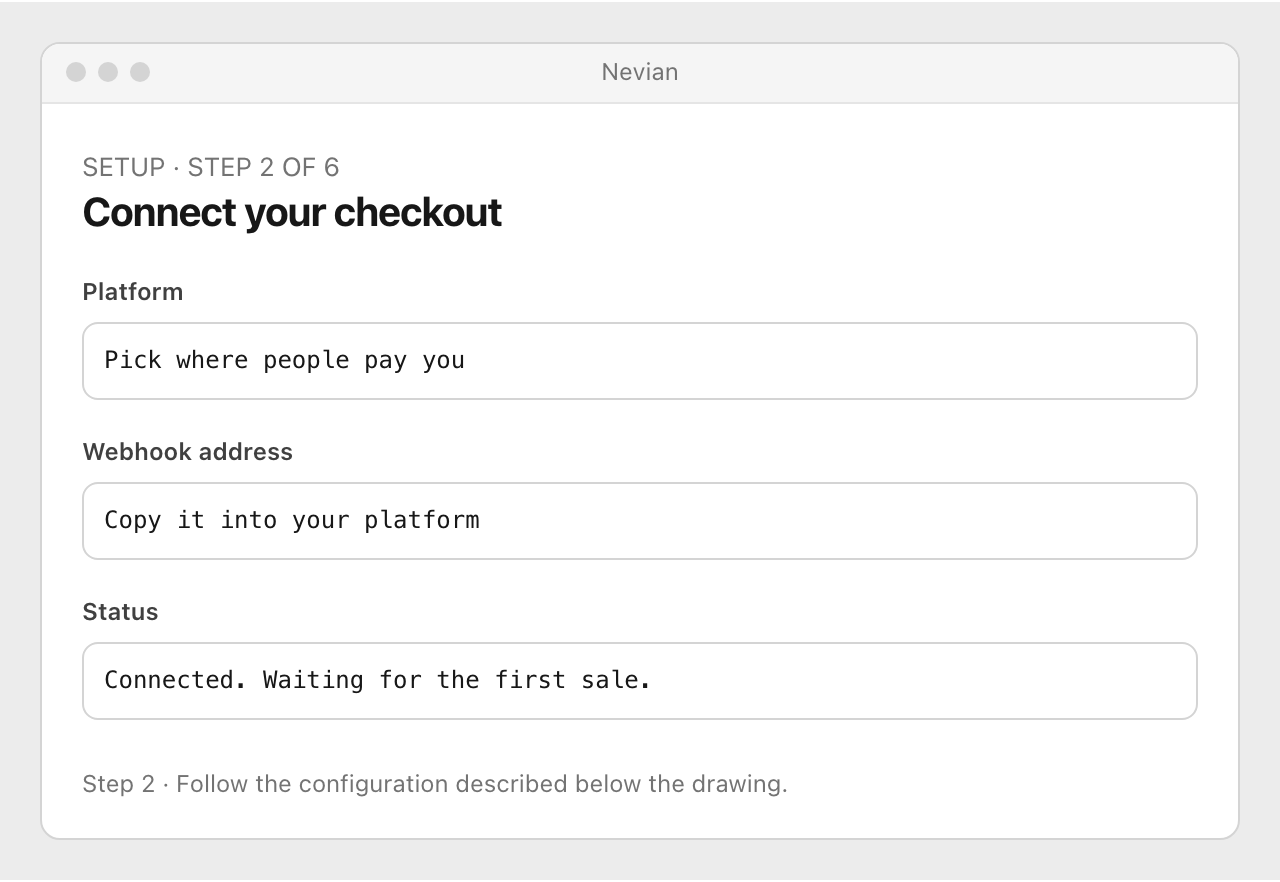
In Connect your checkout, click the platform where people pay you and follow its window. Each platform has its own guide. The step is done as soon as the checkout is connected: it reads Connected. Waiting for the first sale. Some platforms have a secret code; the window asks for it.
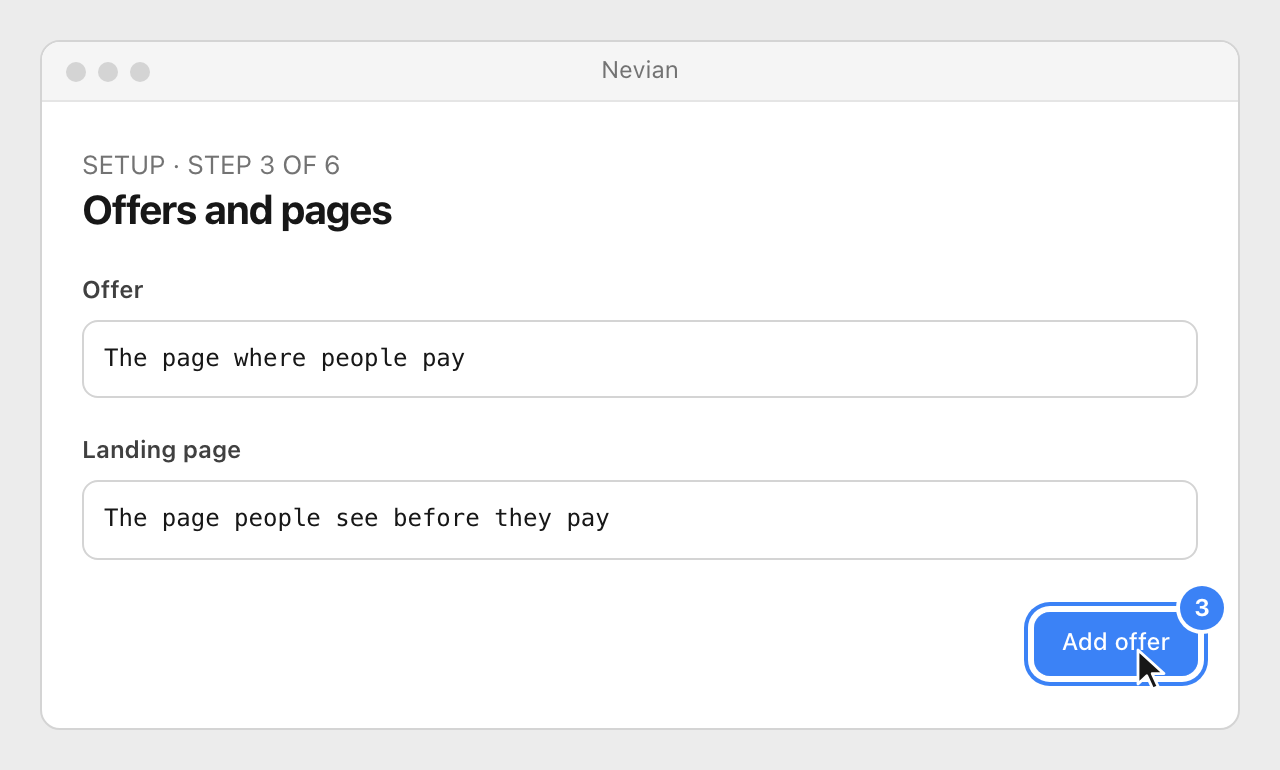
In Offers and pages, click Add offer and paste the link of the page where people pay. Then add the page people see before it.
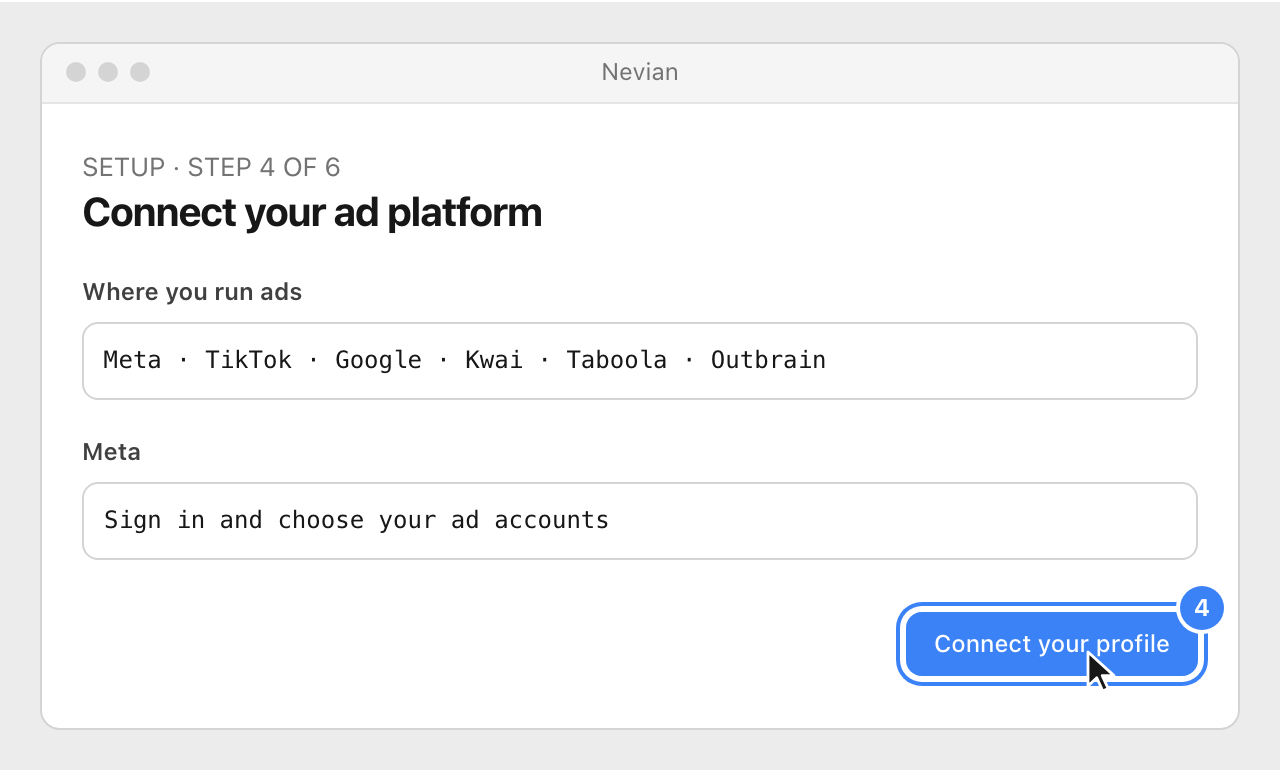
In Connect your ad platform, pick where you run your ads. For Meta, click Connect your profile, sign in and choose your ad accounts; the Meta connection guide has the details. For the other platforms there is no account to connect yet: the campaign gives you their line.
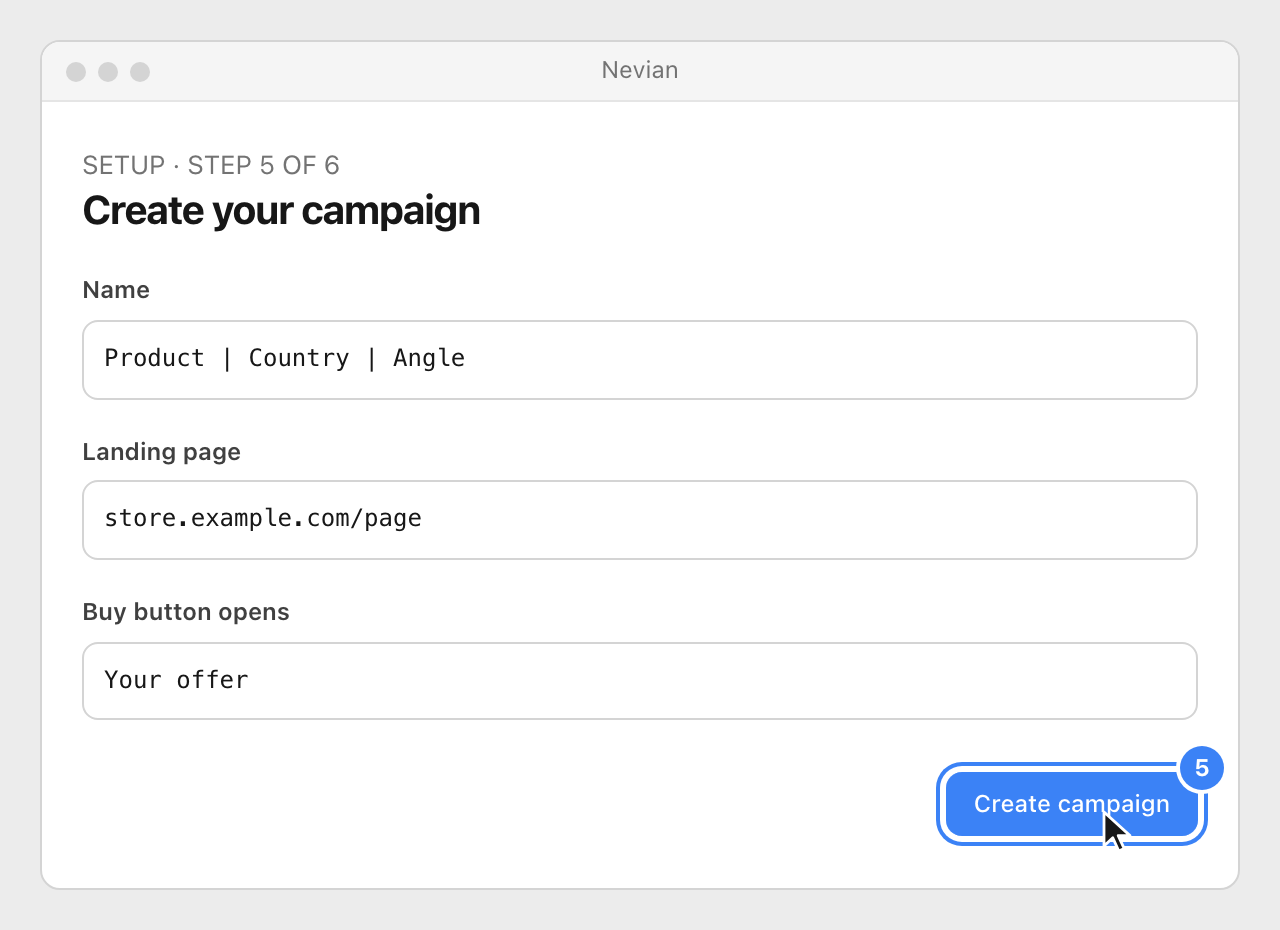
In Create your campaign, type a name, choose your page and your offer and click Create campaign. A campaign tells Nevian which ad leads to which page and which offer. Nevian then gives you one line: paste it in each ad. On Meta it goes in URL parameters.
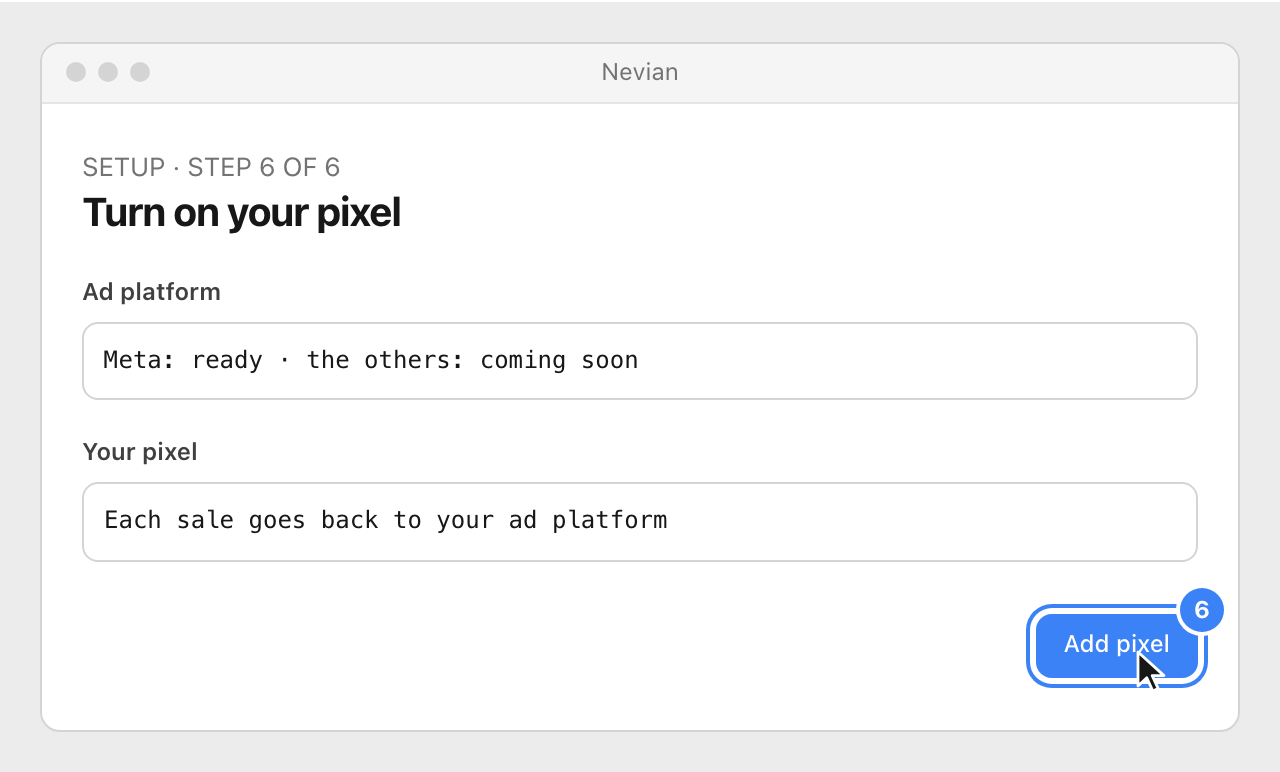
In Turn on your pixel, click Add pixel and choose your pixel. A pixel is the link from Nevian to your ad platform: through it, the ad platform hears about each sale. Do it before your ads run.
Affiliates connect their network in step 2 and can skip step 1 when they have no presell. A store connects its store first and has no Offers and pages step.
Check that it works
- The bar at the top of Setup and the count next to Setup in the menu show how many steps are done. A step is done when the thing exists: a connected checkout, a campaign, a pixel. No step waits for a sale or for a test.
- Everything working?, at the bottom of Setup, reads your real traffic: the script on your pages, the first visit from an ad, the first sale, the sales sent to Meta and the ad spend. Each line checks itself when the real thing arrives.
- Optional: Test your page, at the top of Setup, gives you a test link. Open it and tap your buy button, then close the checkout without paying. Nevian shows the visit, the page view and the tap. Test visits never reach your reports.
Problems
The script step stays open
Open your page once after you paste the line, or use Check my page. If the page still shows an old copy, publish it again and clear its cache.
The checkout step says “Add the …”
Some platforms, such as Hotmart, Stripe, ClickBank and Whop, have a secret code. Until it is saved, Nevian turns their sales away. Open the checkout’s settings and paste the code there.
Sync paused
Check the workspace plan. Existing connections can remain visible while synchronization or delivery is paused.
Still stuck? Chat with us on WhatsApp or write to contact@nevian.io.
Images are our own drawings and configuration diagrams, not screenshots. Use the current values from your account; the examples contain no live credentials.