

Connect Monetizze to Nevian
Connect Monetizze so sales and payment changes reach Nevian and can be matched to the visit that brought the buyer.
What you need
- A Monetizze account with permission to configure notifications.
- An active Nevian plan and an owner, admin or member role. Viewers cannot connect integrations.
- Keep the checkout and Nevian tabs open side by side.
Steps
In Nevian, open Integrations → Add integration (Connect provider in an empty workspace), choose Monetizze and click Next with the platform open in another tab.
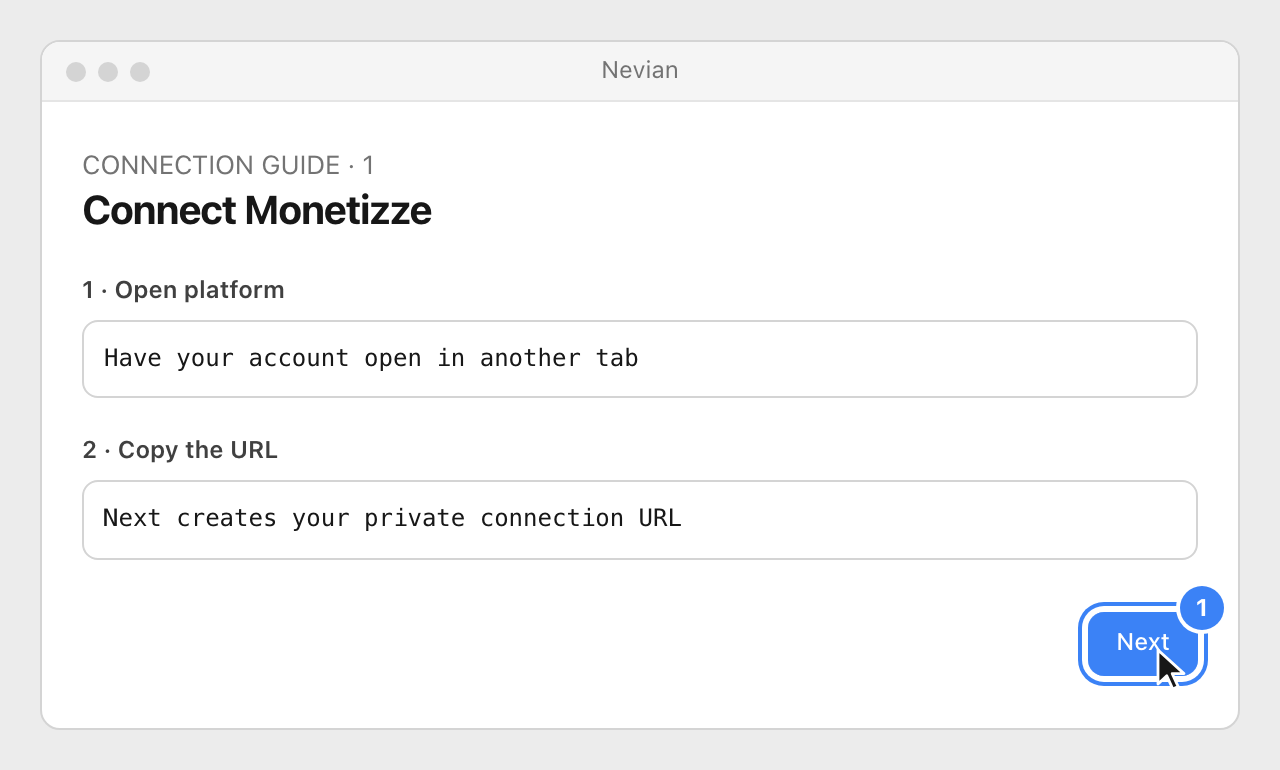
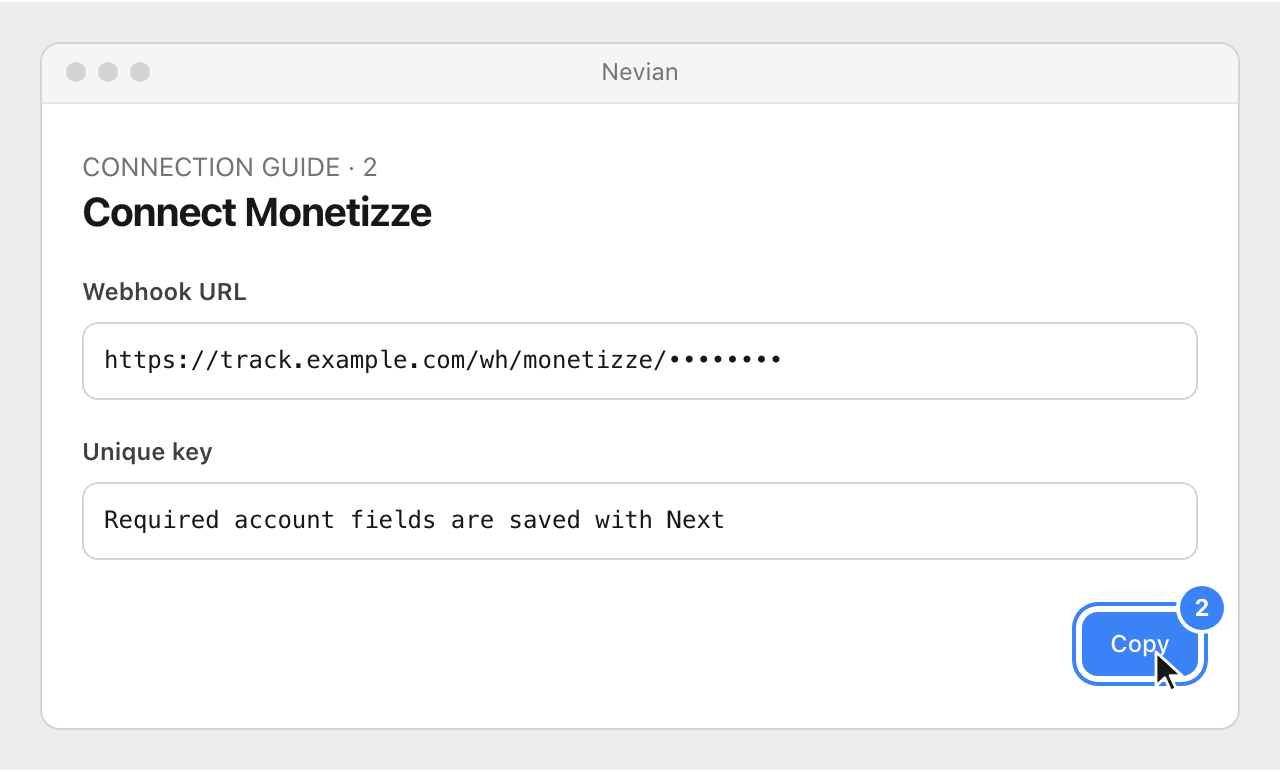
Copy the complete Webhook URL. Keep it private and leave this window open while you configure Monetizze.
In Monetizze, open Ferramentas → Postback / Webhook and select Novo Webhook.
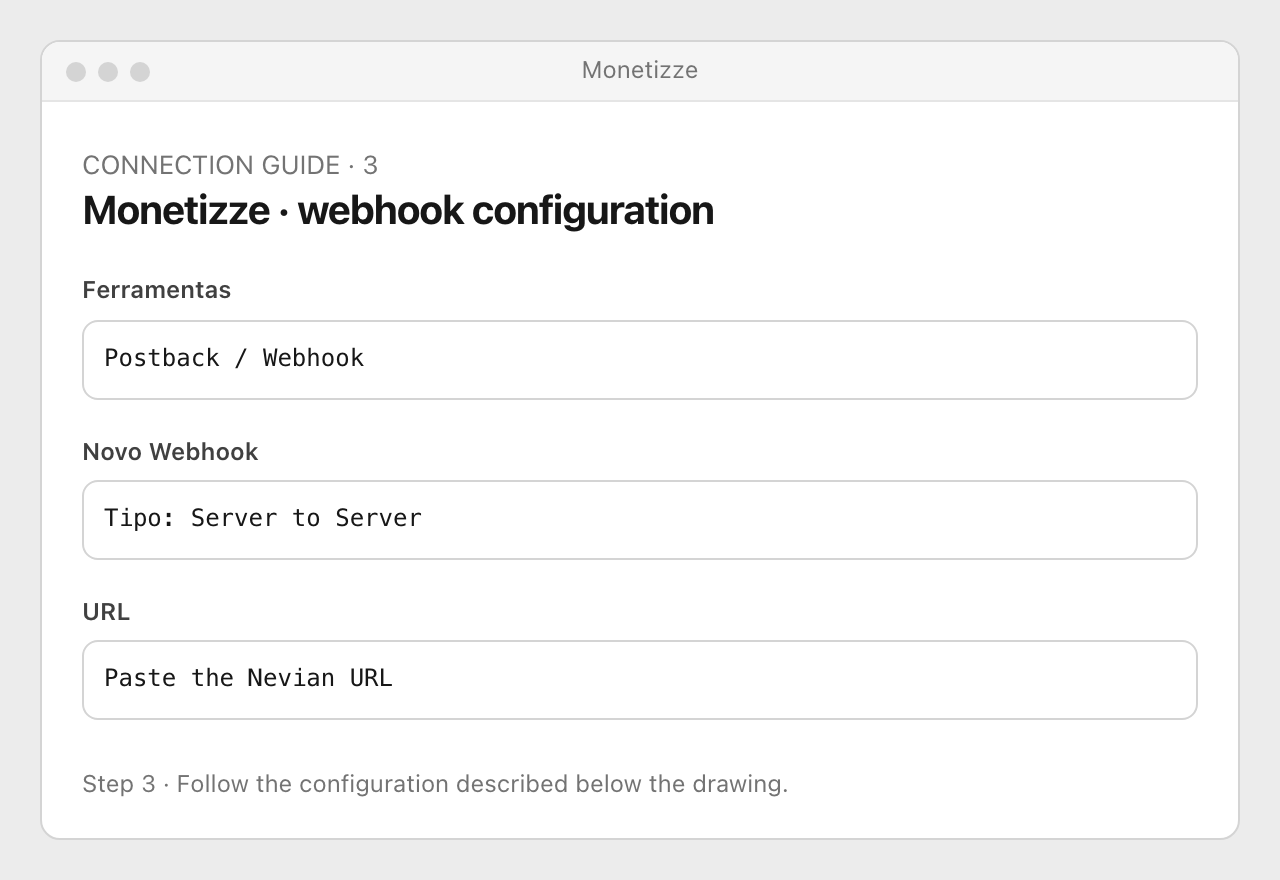
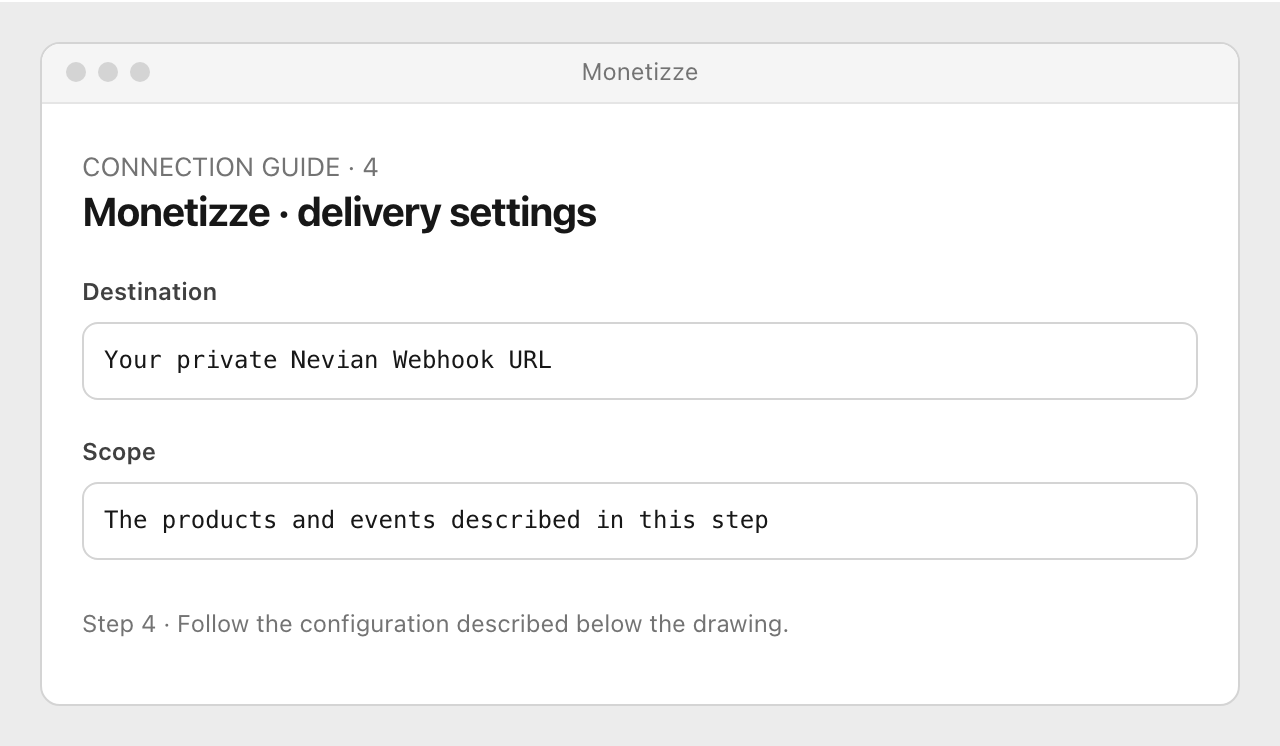
Choose Server to Server, paste the URL and select the products you sell. Include payment status changes and subscription notifications; Nevian accepts both JSON and the default form format.
Return to Nevian, if you use the optional token, enter Unique key and click Next to save it. Use the same value configured for this webhook; for a token you generate yourself, use that exact value in both places. Leave an optional token empty in both places if you do not use it.
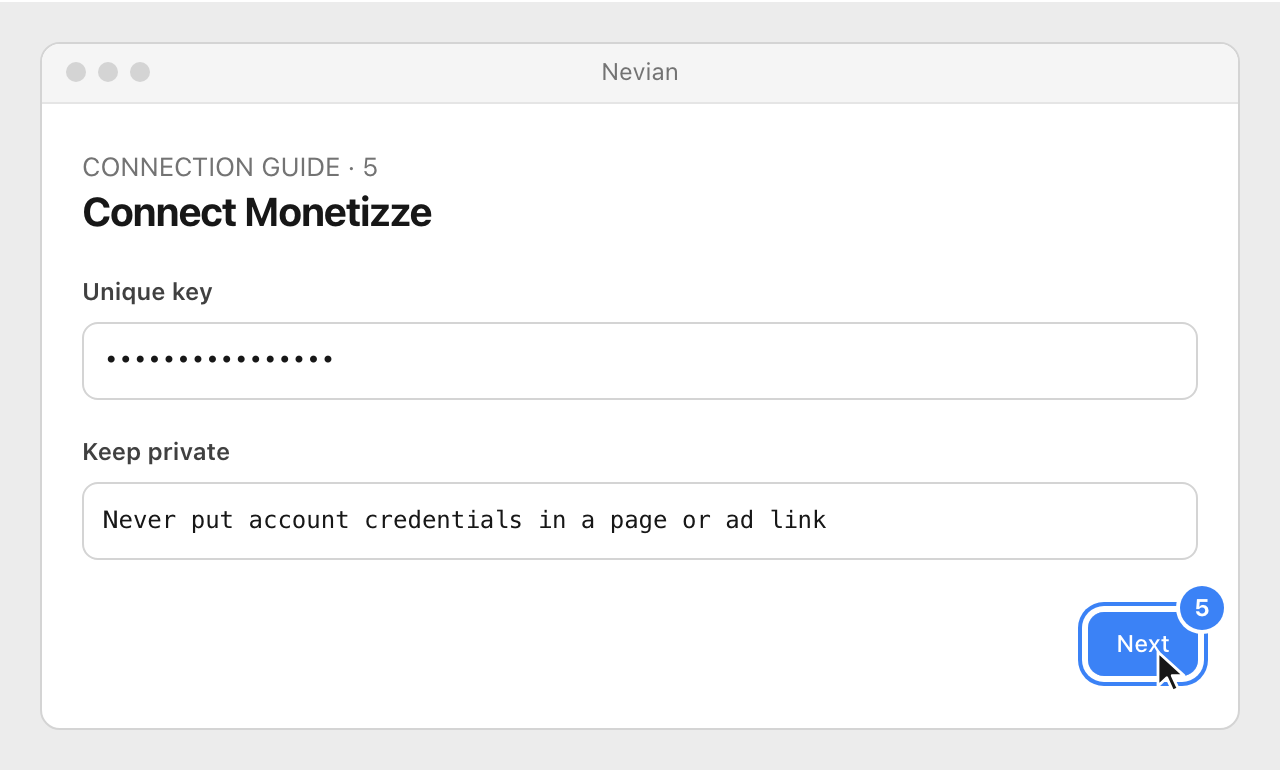
Back in Nevian, go on to the last step of the window. It reads Connected. Waiting for the first sale. Click Done: your first sale shows up by itself.
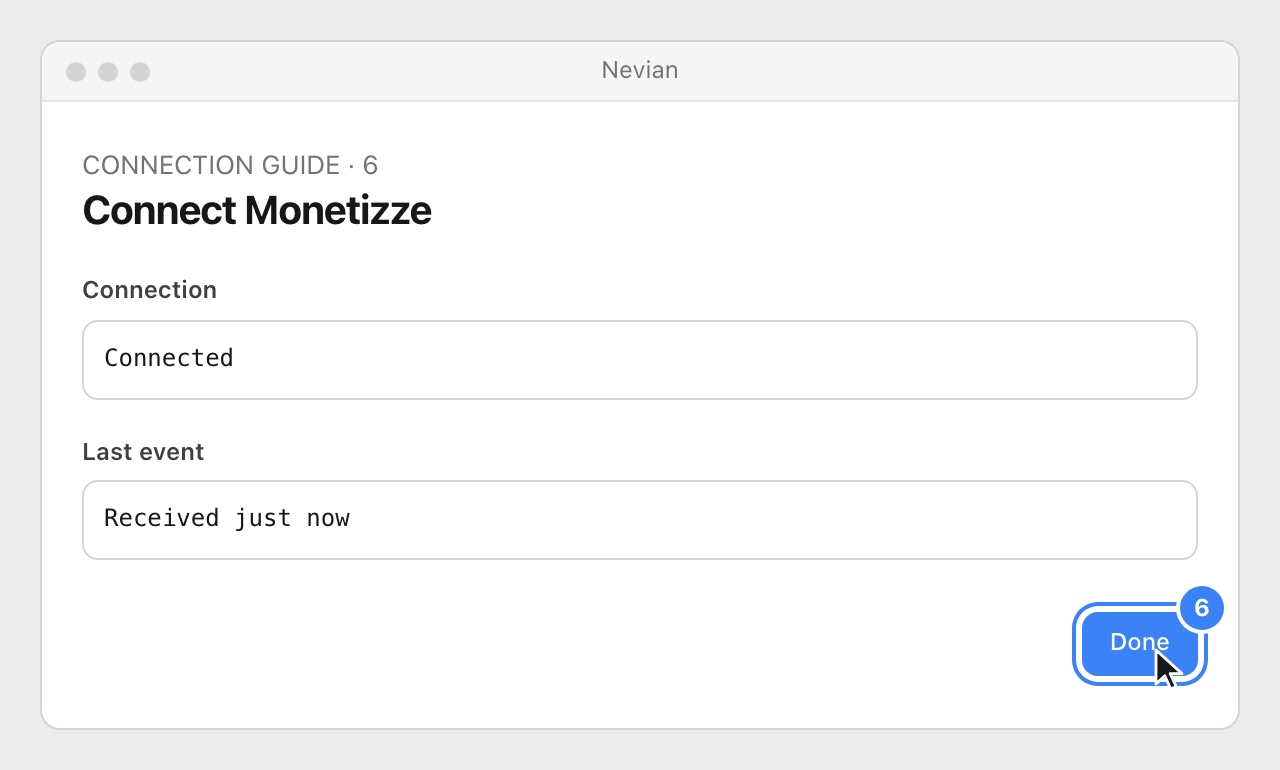
The Unique key is an optional account authentication value. It is not the order ID used to prevent duplicate sales.
Check that it works
- The Monetizze card in Integrations shows it as connected right away, waiting for the first sale.
- The first real sale shows up in Logs → Webhooks and in the reports. A delivered webhook can be logged without creating a sale when the event is informational.
- If you use Monetizze’s own test button (Testar), Nevian records it as a sale, because Monetizze does not mark it as a test: open it in Logs → Conversions and click Mark as test, and it stays out of revenue.
- Keep the tracking script on the page with your checkout links. It adds the visit reference to
app.monetizze.com.brassrc.
Problems
No sale shows up after a real sale
Check the complete URL, event subscriptions and product scope. If you rotated the integration key, replace the URL in the provider too.
The call was rejected
Read the reason in Logs → Webhooks. Check the secret when one is configured. After you fix it, resend the rejected event from the provider, so it is not lost.
No matching click
A call that is not linked to a visit means the buyer reached the checkout without the click ID: follow the click ID instructions above.
Still stuck? Chat with us on WhatsApp or write to contact@nevian.io.
Images are our own drawings and configuration diagrams, not screenshots. Use the current values from your account; the examples contain no live credentials.